










This guide installs Nitro PDF Pro 13 or 14 on Windows and activates a lifetime licence using the manual activation method, where we generate an activation certificate for your computer. The steps are identical for both versions — only the installer differs. Allow about 10–15 minutes.
Before you start
- Match the version to your key. A version 13 key only activates the version 13 build, and a version 14 key only activates version 14. This is the single most common reason activation fails.
- Windows only. 64-bit Windows 10 or 11 is recommended; macOS is not supported by these licences.
- Administrator rights on the PC, to install software.
- An internet connection during installation, and any device that can message us to exchange the activation codes.
- Your product key and order number to hand — you'll need both at Step 5.
System requirements
| Component | Minimum | Recommended |
|---|---|---|
| Operating system | Windows 10 or Windows 11 (64-bit) | |
| Processor | 1 GHz | 2 GHz or faster |
| Memory | 2 GB RAM | 4 GB RAM or more |
| Disk space | 1 GB free, plus room for temporary files and your documents | |
| Also needed | Microsoft .NET (added by the installer if missing) and administrator rights. Microsoft Office is required for the Office conversion features. | |
Step 1 — Download the installer
- Nitro PDF Pro 13 — Nitro no longer publishes version 13, so use our copy: Nitro PDF Pro 13 offline installer (
nitro_pro13_ba_x64.msi.zip, 64-bit, 224.2 MB). Unzip it and run the.msiinside. - Nitro PDF Pro 14 — official file from Nitro's own servers: nitro_pro14.exe.
Save the installer somewhere safe — you'll want it again if you ever rebuild the PC.
Step 2 — Install
- Run the installer. If Windows asks "Do you want to allow this app to make changes to your device?", click Yes.
- On the Let's get situated screen, choose your language under What language do you speak?, leave the folder as it is, and click Install.
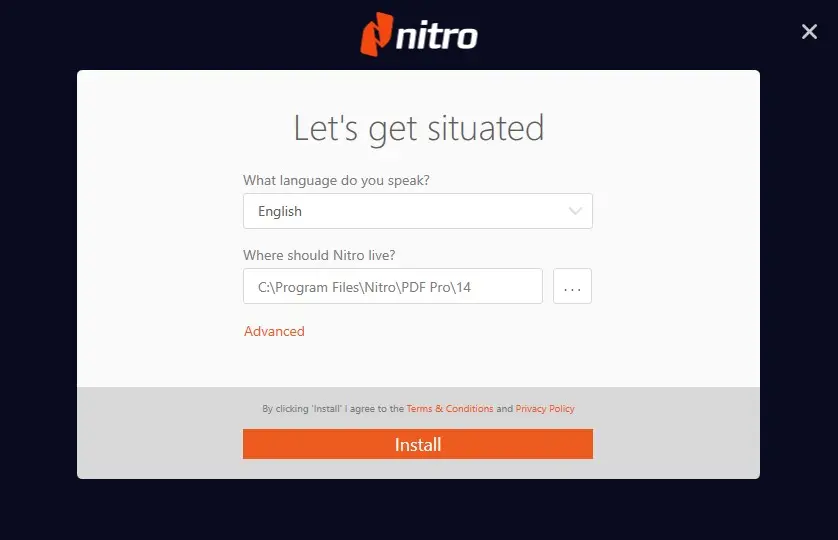
Fig. 1 — Pick your language on the “Let’s get situated” screen, then click Install.
- The installer downloads and installs the program. Keep the internet connected and let it run through Downloading → Install → Launch Nitro.
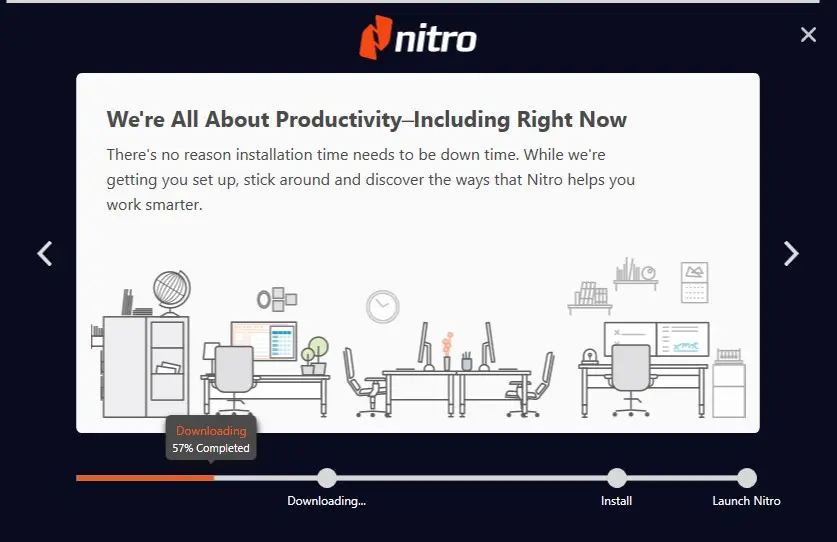
Fig. 2 — Installation in progress — this can take a few minutes.
- When it finishes, click Launch Nitro >>.
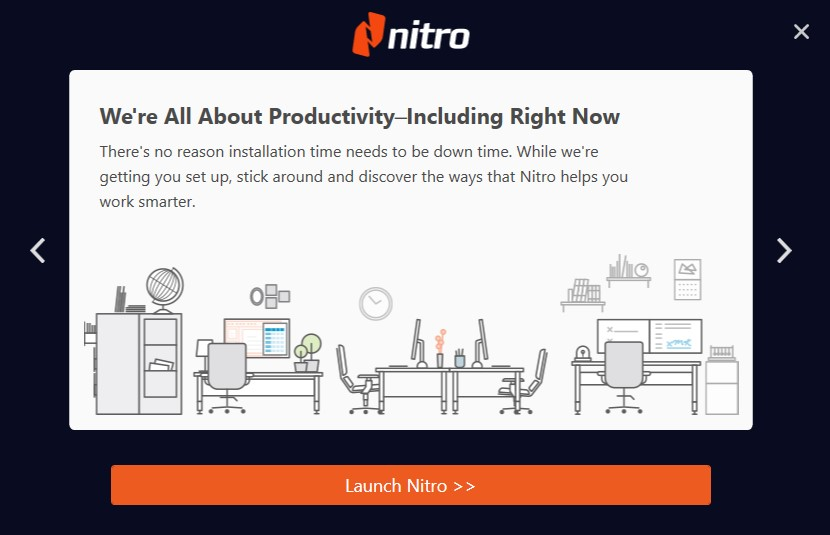
Fig. 3 — Installation complete — click Launch Nitro.
Step 3 — Activate with the manual method
Manual activation produces a certificate tied to your specific computer. You send us one code and we send one back.
- In Nitro PDF Pro, click the green Activate Now button at the top-right. (It appears whether you're in the trial or the trial has expired.)
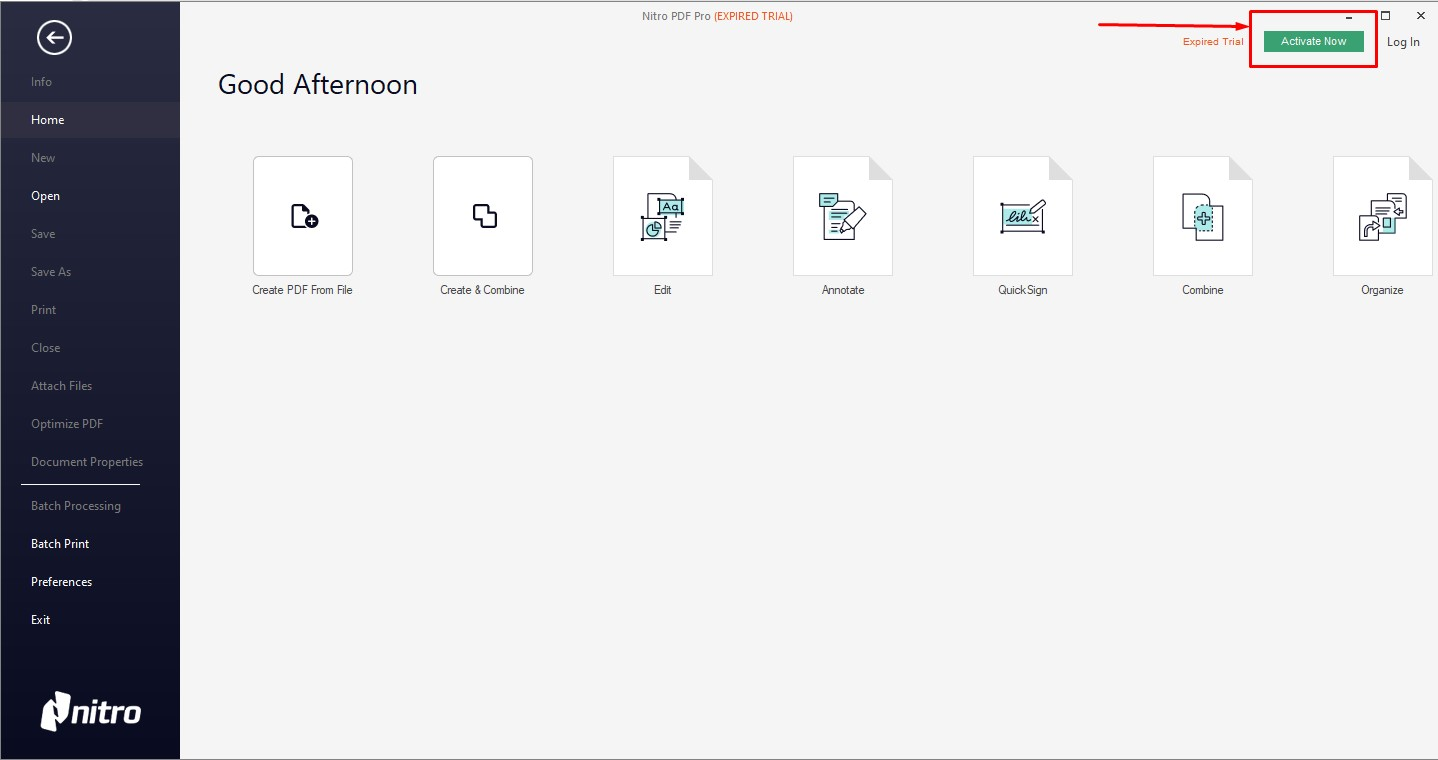
Fig. 4 — The Activate Now button sits in the top-right corner.
- The Activation Assistant opens. Leave the serial number box empty and click Advanced at the bottom-left.
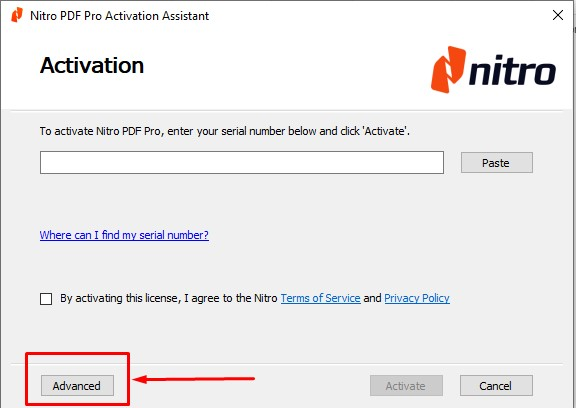
Fig. 5 — Leave the box empty and click Advanced.
- Click Manual… — the option for activating a computer that isn't connected to Nitro's activation service.
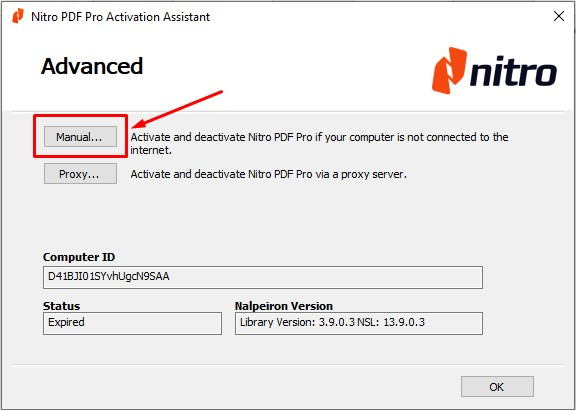
Fig. 6 — Choose Manual…
- On the Offline Activation screen, paste your product key into the box (or click Paste) and click Next. Check there are no extra spaces.
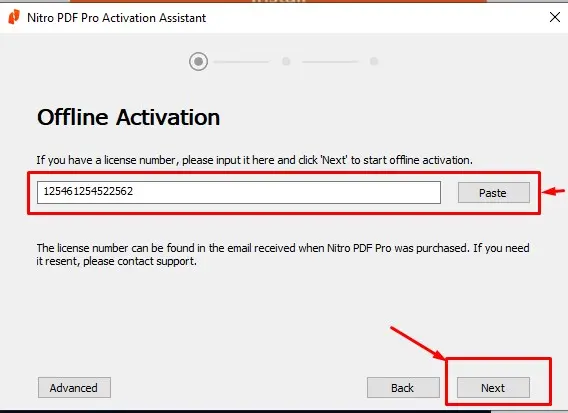
Fig. 7 — Enter your licence number, then click Next. The number shown is only an example.
- The Instructions screen shows a long code — the pre-generated certificate. Click Copy, paste it somewhere safe such as a text file, and send it to us together with your order number. Then click Next.
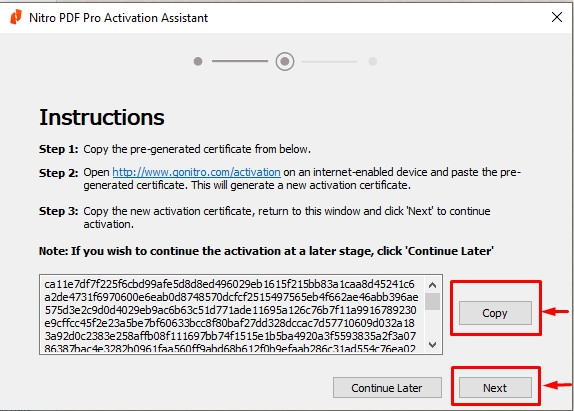
Fig. 8 — Click Copy, send us the code with your order number, then click Next.
Do not close the activation window. If you close it or start again, Nitro generates a different code, and the certificate we prepared for the old code will no longer work. Leave the window open until Step 6 is done.
- When we reply with your activation certificate: click Paste (make sure the whole code goes in), tick By activating this license, I agree to the Nitro Terms of Service and Privacy Policy, and click Activate.
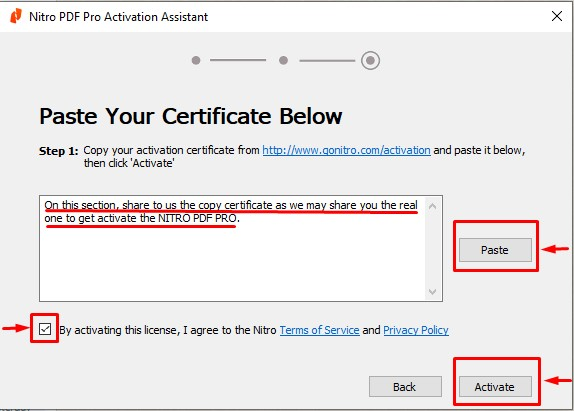
Fig. 9 — Paste the certificate, tick the agreement box, then click Activate.
- Nitro confirms the activation and the trial or expired label disappears from the title bar. Restart Nitro PDF Pro once so everything applies. Your licence is now permanent on that PC.
Troubleshooting
- Windows blocks the installer — right-click it and choose Run as administrator. If SmartScreen warns you, use More info → Run anyway only when the file came from the official links in Step 1.
- "Invalid product key" — type the key by hand instead of pasting, remove stray spaces, and check letters against numbers (O and 0, I and 1). Confirm the key matches the version you installed.
- The certificate we sent is rejected — a certificate only works with the exact pre-generated code it was made from. If the activation window was closed or the process restarted, Nitro created a new code: send us that new one.
- Pasted certificate looks incomplete — select the whole code in our message, including the first and last lines, and paste again.
- The trial expired before you activated — that's fine. Open Nitro PDF Pro and click Activate Now; the steps above still work.
- Convert to Word or Excel is greyed out — those features need Microsoft Office installed on the same PC.
- Moving to another PC — the licence covers one computer at a time. Contact us with your order number before you migrate and we'll reissue the activation.
Buying Nitro PDF Pro
Genuine Nitro PDF Pro lifetime licences with instant delivery and free activation support — see our Nitro PDF Pro licences. Not sure which version you need? Ask us before you buy.